To access your course, login into the ITU Academy and click on “My courses”, this brings you to the learning environment of the platform: Moodle. From your dashboard, you can navigate to the course you are looking to edit. This section contains links to short tutorials on the most common Moodle actions.
For more detailed information on these actions, you can also consult the full Moodle documentation:
To make any edits to your course page, you need to click on “Turn editing on”:

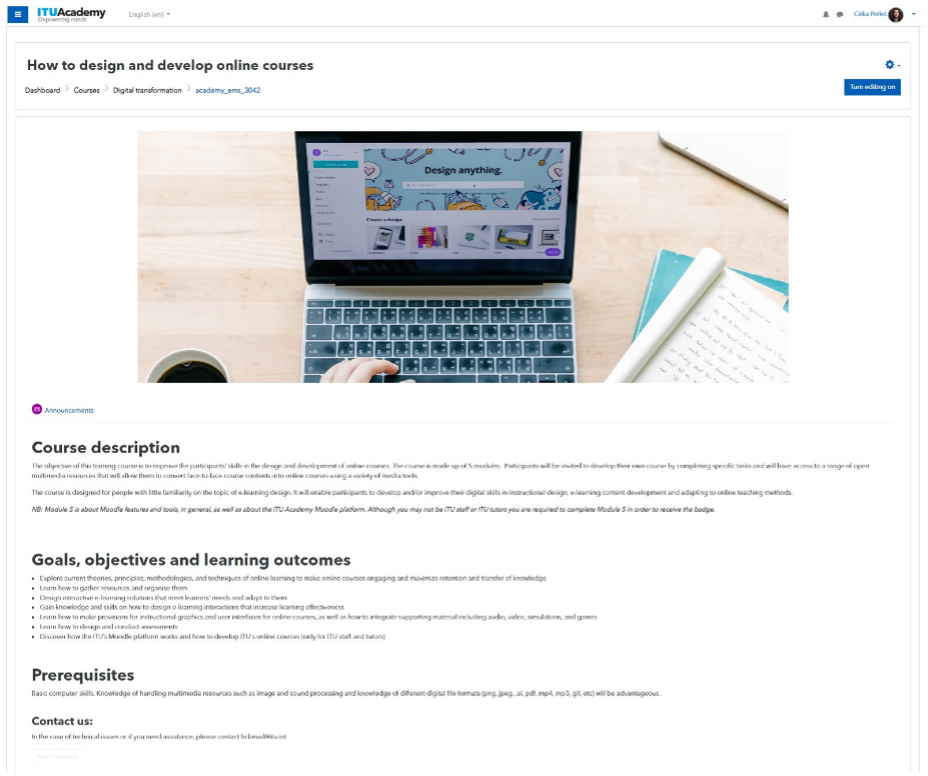
General section
This section is the first thing that participants see when they access your course, it should be attractive and contain all the information relevant for participants to complete the course. You should:
Add the course description, learning objective and outcomes, prerequisite, contact and evaluation and certification/badging information. You should also add the information note if the course is face-to-face.
Create your course structure
The course should be structured using sections, following the structure of the training outline, with usually one section for each Day / Module or Week.
Within each section, you should add relevant instructions and resources to guide participants as well as the activities themselves.
Create your activities
Below are the most common activities:
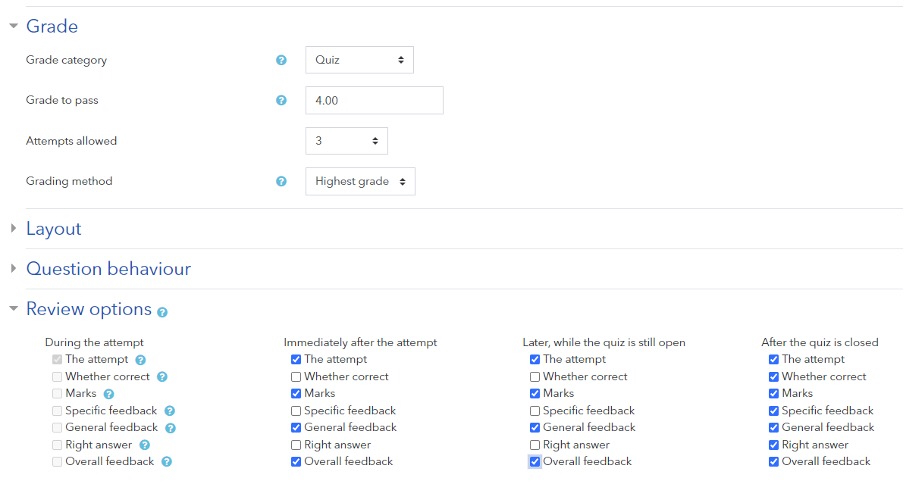
When setting up a quiz, pay special attention to these settings:
- Set the pass grade (if your quiz maximum grade is 15 and the pass grade is 60% then you would input 9)
- Set the maximum number of attempts allowed. It is recommended not to go beyond 3.
- Under review options, be sure to untick “Whether correct” and “Right answer” to make sure that participants cannot cheat on their next attempt. If your quiz includes feedback that indicates which is the correct response, you should also until those. See below how the Review Options settings should be set:
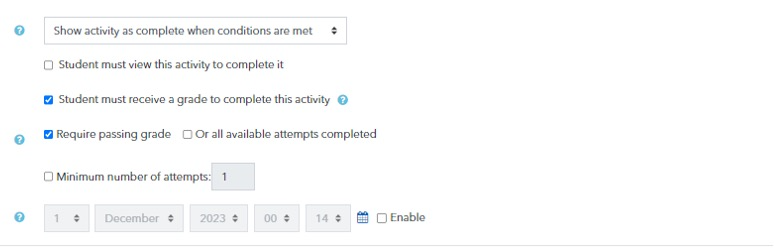
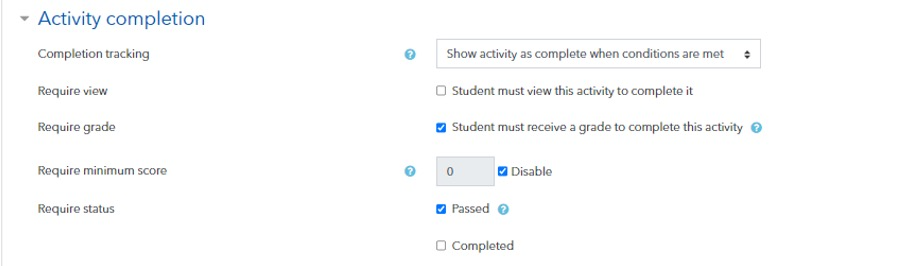
Under activity completion, select “Show activity as complete when conditions are met” and tick “Participants must receive a grade to complete this activity” and “Require passing grade”.
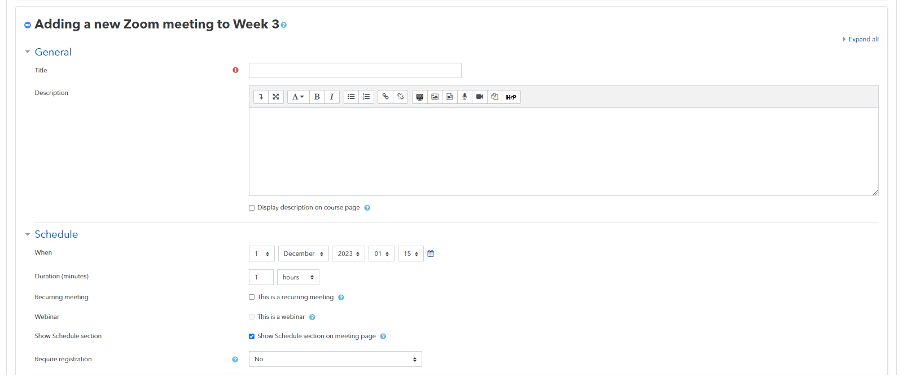
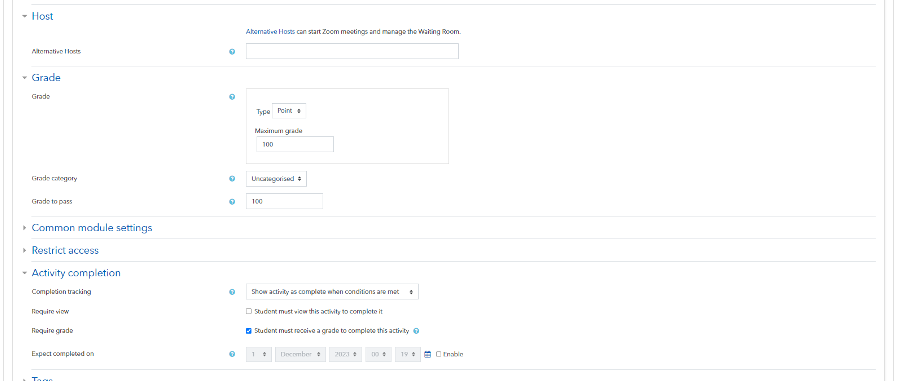
Zoom meeting: if your course includes Zoom sessions, the ITU Academy will temporarily grant you a license to use the Zoom integration with Moodle. This enables you to conduct Zoom sessions without being restricted by the free features as well as will automatically grade attendance of participants. When setting up a Zoom meeting, pay special attention to these settings:
- Clearly indicate the day and time of the session in the title
- Add the date time of your session. Note: you will be able to open the Zoom meeting 15 minutes in advance of the time indicated.
- Designate alternative hosts if this is needed. Unless alternative hosts are specified, only the host (you) will be able to start it. Alternative hosts need to be granted a license as well.
- In “Grade” select “Point” and set “Maximum grade” as 100. Under “Grade to pass” input 100. Attendance will automatically be marked 100 and none attendance 0.
- Under “Activity completion”, select “Show activity as complete when conditions are met” and tick “Participants must receive a grade to complete this activity”
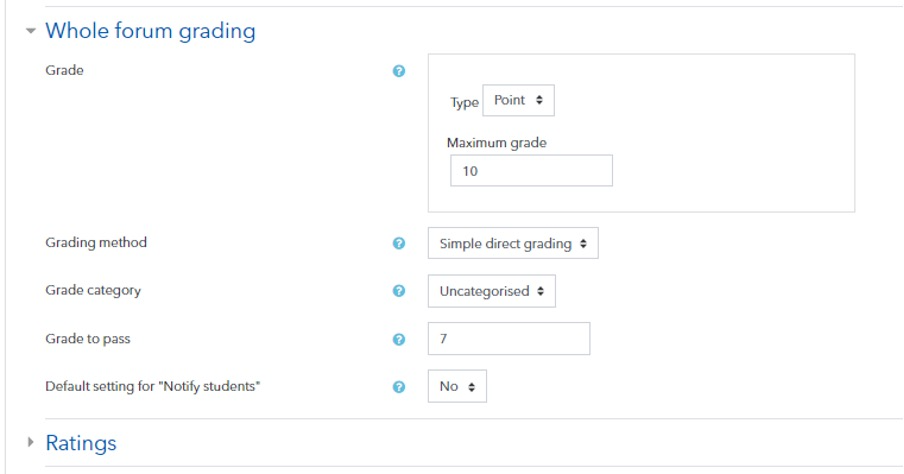
There are two ways to grade a forum: “Whole forum grading” where a whole grade is given for the overall participation of a participant (regardless of how many posts and replies they make) or “Ratings” which allows the instructor to grade each post or reply separately. The ITU Academy recommends the use of the former as it is less time consuming to manage. See example settings below:
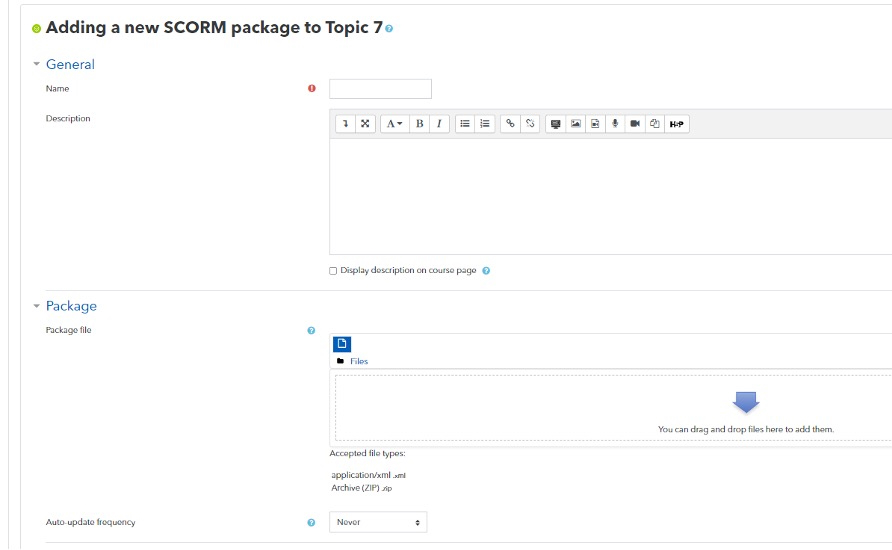
SCORM package: a SCORM package is the file that is delivered by instructional designers for self-paced courses. In order to set up a SCORM you need to:
- Add a title with the name of the Module
- Add a description if necessary
- Drope the SCORM – that is the .zip folder provided by the instructional designer.
- Grading and activity completion: there are two ways to grade a module depending on whether you intend for participants to:
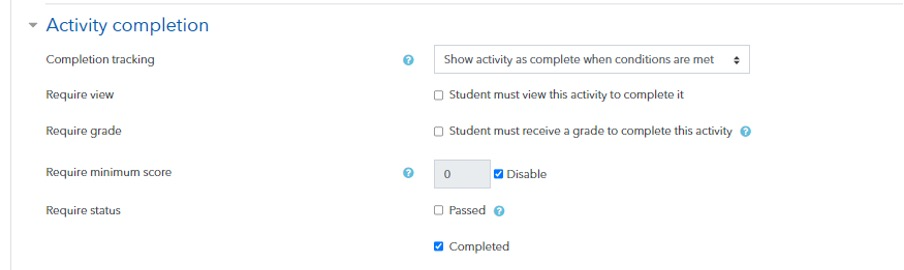
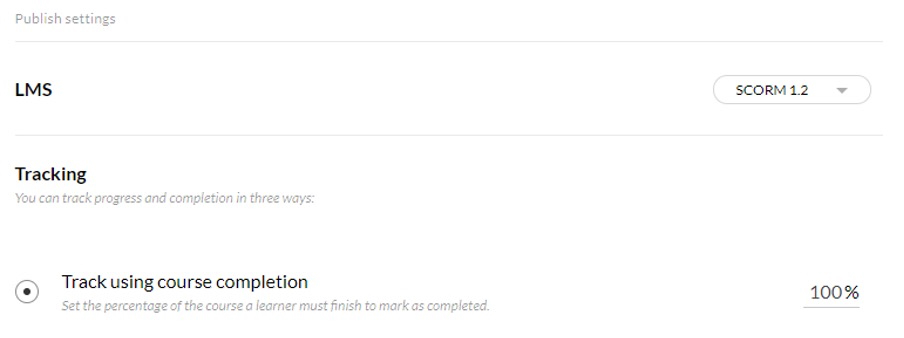
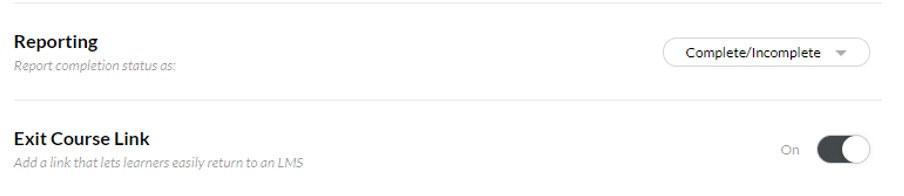
- have simply gone through the Module but take assessments outside of the SCORM, in this case select as “Grading method”: “Learning Objects” and select “Require status”: “Completed” in the “Activity completion” settings. This means that participants will receive a grade 1 for completion of the SCORM package.

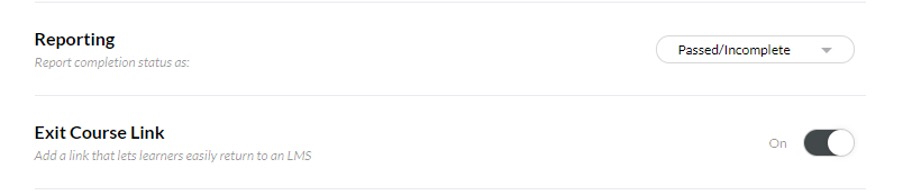
These settings have to correspond to the “Publish” settings from the software, see how it should be in the image below.
go through the Module and take assessments inside the SCORM, in this case select as “Grading method”: “Highest grade” and select “Participants must receive a grade to complete this activity” as well as status “Passed” in the “Activity completion” settings. This means that participants will receive the grade they have achieved in the SCORM assessment.

These settings have to correspond to the “Publish” settings from the software, see how it should be in the image below.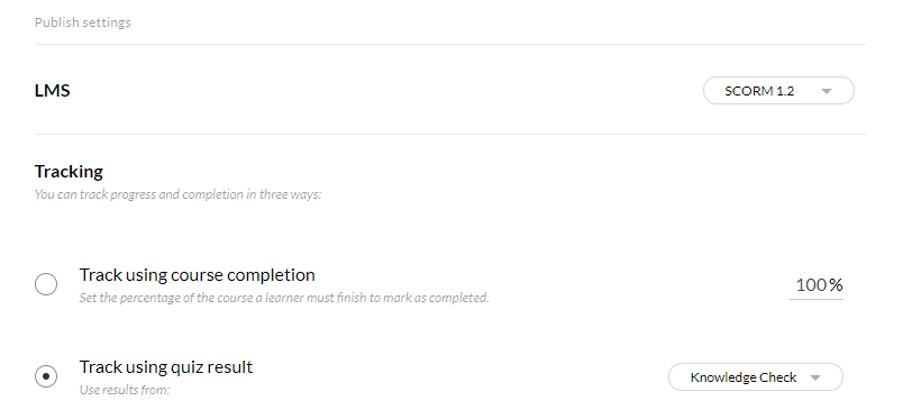
Add resources
Below are the most common types of resources that can be added:
Note to limit the use of storage space as well as to accommodate users with low bandwidth, we recommend that you only upload short, compressed videos or that you rather link (through a URL as explained the the next video) your videos or pre-recorded lectures through a video-streaming platform (such as YouTube).